How Much NAS Storage Do You Need? A Practical Capacity Planning Guide
At a Glance
| Step | What to calculate | Example |
|---|---|---|
| 1. Current data | Everything that will live on the NAS | 8 TB |
| 2. Growth | Expected annual increase × planning years | 3 TB/year × 4 = 12 TB |
| 3. Working target | Current + growth | 20 TB |
| 4. Headroom | Leave free space for snapshots, updates and growth error | Target perhaps 25–30 TB usable |
| 5. RAID/protection | Add enough raw capacity for redundancy | Depends on RAID/SHR/RAIDZ |
| 6. Drive/bay choice | Select capacity and number of disks | Compare 4×12TB, 4×16TB, etc. |
Step 1: Measure What You Actually Need to Store
Start with the data that will actually move to the NAS: computers, photos, video projects, media libraries, phone backups, VM images, surveillance archives and shared files. Do not count files that will remain elsewhere unless the NAS will also hold a copy.
Step 2: Plan for Growth, Not Just Today
A NAS is often kept for several years. A system that is 80% full on day one is already undersized. Estimate annual growth based on real behavior: new photos and video, client projects, backups, security footage or VM expansion. If your data grew from 6TB to 9TB during the last year, that history is more useful than a generic internet percentage.
Step 3: Understand Raw vs Usable Capacity
Drive manufacturers label capacity in decimal terabytes, while operating systems and NAS tools may report capacity using binary units or reserve space for the system and filesystem. Redundancy consumes additional capacity. Synology’s RAID calculator, for example, shows reserved system space and notes that actual volume capacity will be lower after filesystem metadata.
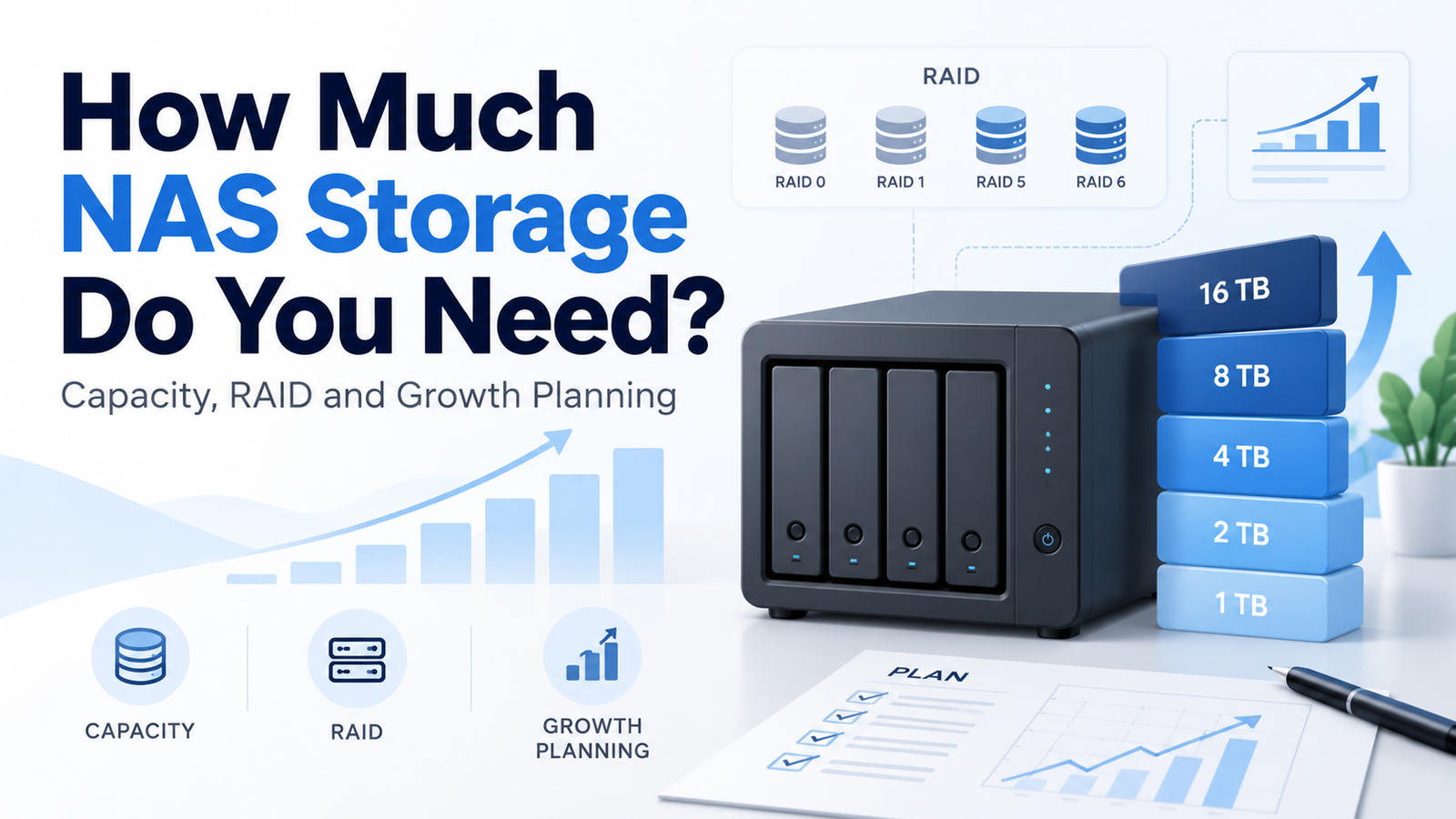
Simple RAID capacity rules
| Layout | Simplified usable-capacity rule with equal-size drives |
|---|---|
| RAID 1 | About one drive’s capacity in a two-drive mirror |
| RAID 5 | About (number of drives − 1) × drive capacity |
| RAID 6 | About (number of drives − 2) × drive capacity |
| RAID 10 | About half of total raw capacity |
| SHR / SHR-2 | Depends on drive mix; can use mixed capacities more efficiently than traditional RAID in some configurations |
These are planning rules, not exact final-volume numbers. Filesystem metadata, manufacturer decimal units and NAS system partitions reduce what you see in the final volume.
Step 4: Leave Free-Space Headroom
Capacity planning should leave room for snapshots, temporary files, recycle bins, filesystem behavior and unexpected growth. The exact amount depends on the workload and NAS platform, but buying a configuration that is almost full immediately removes flexibility and can make future upgrades expensive.
Step 5: Consider Drive Bays as a Resource
The cheapest $/TB drive is not always the cheapest system decision. Larger drives can preserve empty bays for future expansion. Conversely, filling every bay with very large disks may overspend when the workload is small. Compare total system cost, usable capacity and remaining bay count—not only individual-drive price.
Capacity Examples
| Need | Possible starting comparison | Why |
|---|---|---|
| Small household file/backup NAS | 2×8TB or 2×12TB mirror | Simple redundancy with room for moderate growth |
| Growing photo/media library | 4×12TB vs 4×16TB protected array | Compare usable capacity and future growth |
| Large creative archive | 4×20TB / 4×24TB or more bays | Higher capacity per bay may reduce expansion pressure |
| Mixed existing drive sizes | Check SHR/SHR-2 or vendor-specific options | Traditional RAID may waste larger-disk capacity |
Bottom Line
Choose NAS capacity from the inside out: current data, expected growth, protection layout, free-space headroom, then the number and size of drives. DiskBarn’s capacity pages and comparison table should be the final step after you know the usable-storage target—not the first step before you know what the NAS must hold.
Compare drives on DiskBarn: Search and compare hard drives by brand, series, capacity, category and model number.
Related DiskBarn Guides
- WD Red Plus vs WD Red Pro: What Are You Actually Paying More For?
- Can You Mix Hard Drive Brands, Models or Capacities in a NAS?
- CMR vs SMR Hard Drives: What’s the Difference and Which Should You Choose?