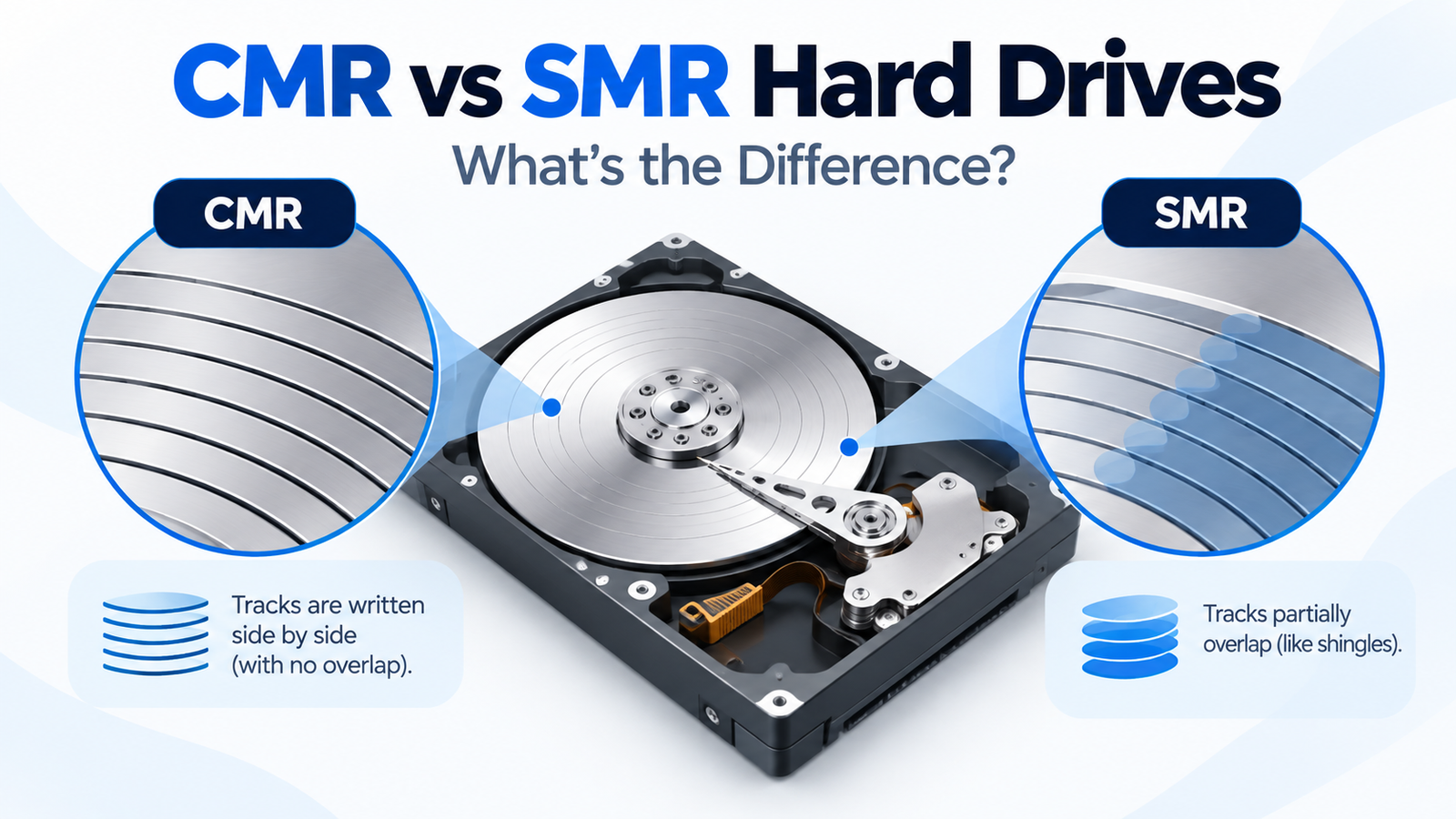
CMR vs SMR Hard Drives: What’s the Difference and Which Should You Choose?
At a Glance
| Characteristic | CMR | SMR |
|---|---|---|
| Track layout | Tracks are written side by side | Tracks overlap to increase density |
| Rewrite behavior | More direct and predictable | Can require rewriting neighboring data zones/bands |
| Sustained write consistency | Generally stronger | Can drop substantially after cache/background limits |
| NAS/RAID suitability | Common default choice | Use only when workload/platform is appropriate |
| Good fit | General purpose, NAS, RAID, active storage | Archive, light/read-mostly or SMR-aware storage designs |
How CMR Works
Conventional Magnetic Recording places magnetic tracks beside one another with enough separation for the drive head to rewrite a track without rewriting adjacent tracks. This is the conventional behavior most operating systems and RAID stacks have historically expected. It makes CMR a straightforward choice for mixed read/write workloads and arrays that may need long rebuilds.
How SMR Works
Shingled Magnetic Recording increases density by allowing tracks to overlap. Because rewriting an overlapped track can affect neighboring tracks, some SMR implementations must reorganize or rewrite larger regions of data. The drive can hide much of this work using cache and background activity, but once the workload exceeds those buffers or idle-time opportunities, sustained write performance can become less predictable.
Why SMR Can Be Fine for Some Uses
SMR is not inherently unreliable. The question is whether the write pattern and storage stack match the recording method. Mostly sequential archive writes, light desktop storage and systems designed to manage SMR behavior can use the extra density effectively. Seagate itself now separates conventional CMR products from host-managed/SMR offerings and notes that SMR-aware architecture is important for its highest-capacity SMR deployments.
Why CMR Is Usually Preferred for NAS and RAID
NAS and RAID workloads can involve repeated small writes, metadata activity, parity updates, scrubbing and rebuilds. Those operations reward predictable write latency. Western Digital explicitly positions CMR for RAID/NAS and write-heavy use, and current WD Red Plus/Pro are CMR. Seagate’s current IronWolf and IronWolf Pro lineups are also listed as CMR, while some other product families contain SMR models.
How to Check Whether a Drive Is CMR or SMR
Use the manufacturer’s model-level documentation first. Seagate publishes a current CMR/SMR list by family and capacity. Western Digital product pages for Red Plus explicitly state CMR. Toshiba’s current N300 and N300 Pro pages likewise state CMR across their listed capacities. Retailer descriptions are secondary evidence and can be stale or copied incorrectly.
What DiskBarn should show
Recording technology is a strong database field because it turns this article into a lookup pathway. From this guide, users should be able to click to a CMR-only comparison view or exact model page instead of leaving with only a conceptual explanation.
CMR vs SMR by Use Case
| Use case | Recommended starting point | Reason |
|---|---|---|
| NAS / RAID | CMR | Predictable mixed-write and rebuild behavior |
| ZFS / frequent scrubs | CMR | More predictable sustained writes |
| Desktop bulk storage | CMR or SMR | Depends on write intensity and price |
| Cold/archive storage | SMR can be reasonable | Writes may be infrequent and sequential |
| Enterprise host-managed SMR environment | SMR may be intentional | Storage stack is designed for zoned/SMR behavior |
Bottom Line
CMR is the safest general-purpose choice when you want predictable write performance and broad RAID/NAS compatibility. SMR can be a valid technology when the workload is light, archival or explicitly SMR-aware. The buying mistake is not “choosing SMR” in all circumstances; it is buying a drive without knowing which recording method the exact model uses and whether that matches the workload.
Compare drives on DiskBarn: Search and compare hard drives by brand, series, capacity, category and model number.
Related DiskBarn Guides
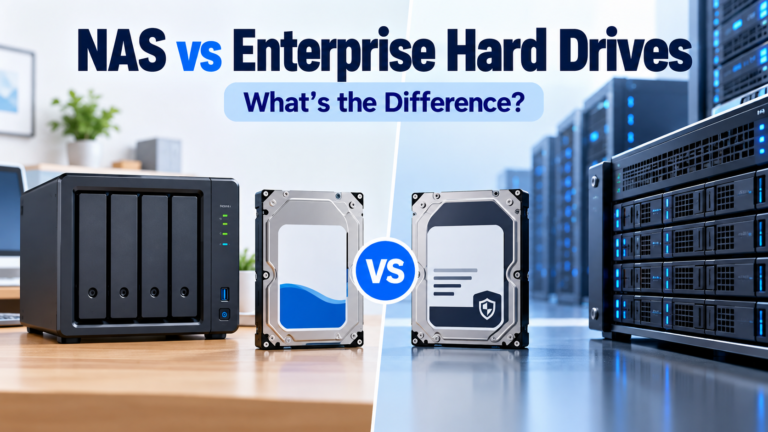
- NAS vs Enterprise Hard Drives: What’s Actually Different?
- Can You Mix Hard Drive Brands, Models or Capacities in a NAS?
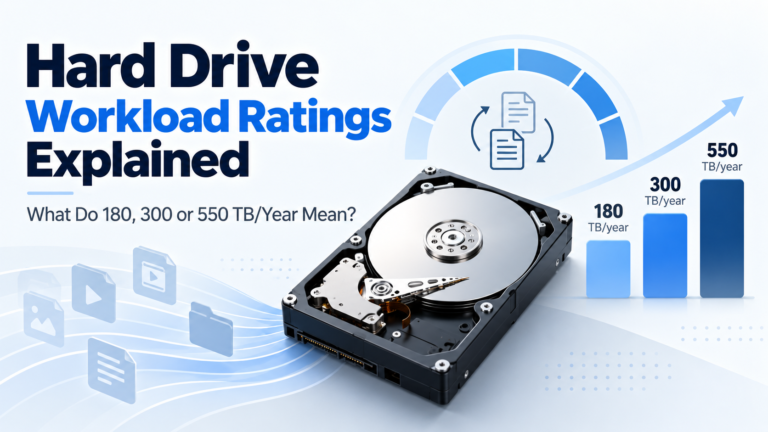
- Hard Drive Workload Ratings Explained: What Does 180, 300 or 550 TB/Year Mean?