How Much RAM Does a NAS Need? 4GB vs 8GB vs 16GB
How much RAM does a NAS need? Less than many buyers expect for simple storage, but more than an entry-level appliance may offer once you start running applications. The right answer depends on whether your NAS is a file server, a photo-indexing machine, a Plex server, a Docker host or a small virtualization platform.
| NAS workload | Practical starting point | Upgrade trigger |
|---|---|---|
| Basic file shares and backups | 2–4GB | Heavy indexing or concurrent apps |
| Family photos, Plex direct play, light apps | 4–8GB | Multiple services or cache pressure |
| Docker and multi-user workloads | 8–16GB | Measured memory pressure |
| Virtual machines / heavier homelab | 16GB+ where supported | VM allocation and host headroom |
| ECC versus non-ECC | Depends on model, not capacity alone | Data-integrity and business requirements |
Research the exact NAS models before buying:
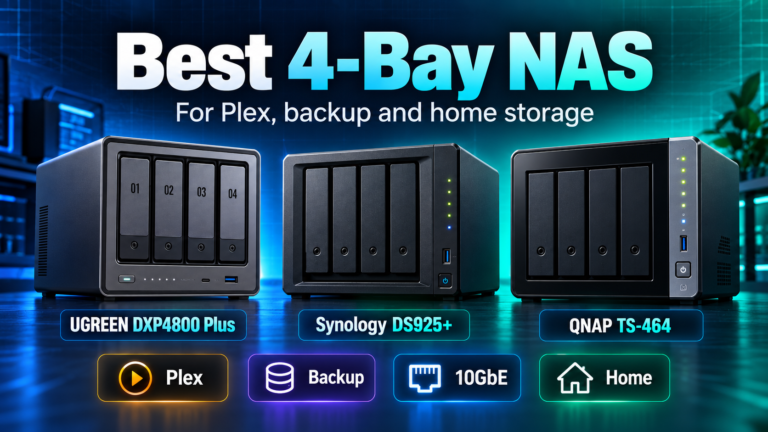
- QNAP TS-464-8G-US 4-Bay Desktop NAS – check Amazon listing (paid link)
- UGREEN DXP4800 Plus 4-Bay NAS – check Amazon listing (paid link)
- Synology DiskStation DS925+ 4-Bay Diskless NAS – check Amazon listing (paid link)
Affiliate disclosure: As an Amazon Associate I earn from qualifying purchases. Amazon links above are paid links. Verify the exact model, seller, condition and current availability.
File storage does not automatically require 16GB
A NAS serving shared folders, doing scheduled laptop backups and maintaining a modest number of users can often operate well with 2GB to 4GB, depending on its OS and packages. Network and HDD performance may limit file transfers long before RAM does. Buying 16GB for a box that only holds family documents is rarely the first upgrade to prioritize.
That said, a new NAS may do more than you planned. Photo thumbnail generation, search indexing, antivirus scanning, cloud synchronization and backup jobs can overlap. If you want flexibility without immediately buying memory, choose a model with user-upgradable RAM and enough supported headroom.
Why 8GB is a sensible middle ground
Eight gigabytes is a practical starting point for many modern home-server buyers because it leaves more room for the NAS operating system, file cache, media services and a few containers. The QNAP TS-464 ships with 8GB DDR4 in its current 8G configuration, while the UGREEN DXP4800 Plus includes 8GB DDR5. These devices also provide multi-gigabit networking and M.2 slots, so memory is not their only differentiator.
For someone using Plex mainly through direct play, RAM usually is not the main performance variable. Codec conversion, CPU/GPU support and client compatibility matter more. Before paying for memory specifically for Plex, identify whether the problem is transcoding or the server running out of RAM.
Practical purchase: if you are starting a flexible four-bay home NAS with no heavy VMs planned, an 8GB model is a reasonable baseline. Check QNAP TS-464-8G-US on Amazon (paid link) or check UGREEN DXP4800 Plus on Amazon (paid link).
When 16GB or more earns its keep
RAM becomes more important when you run several Docker containers, large photo libraries with background indexing, database applications or virtual machines. A VM reserves memory for a guest operating system and its applications, while the NAS itself still needs memory. If you plan two VMs plus containers and background backup jobs, 16GB may be a realistic starting point rather than an extravagant upgrade.
The best method is to budget memory for the workloads you know you will run, then leave headroom for the host. If you do not yet have a workload list, do not spend as though you do. Buy a platform that can expand and upgrade only after checking its usage statistics.
Model limits matter more than the RAM label
The Synology DS925+ includes 4GB ECC DDR4 and supports up to 32GB in Synology’s documented configuration. The current QNAP TS-464-8G lists 8GB DDR4 and a 16GB maximum. UGREEN lists 8GB DDR5 and a substantially higher maximum for the DXP4800 Plus. Those are different upgrade paths, not just different starting quantities.
Do not treat ‘DDR4’ or ‘DDR5’ as permission to install any module with that label. Check form factor, speed, voltage, ECC support, approved module list, BIOS/OS constraints and warranty/support terms. Synology explicitly recommends compatible Synology modules for its documented support position. A cheaper third-party stick is not a bargain if it creates instability or support problems.
ECC memory: useful, but not a substitute for backup
Error-correcting code (ECC) memory can detect and correct certain memory errors, which is valuable in storage and business systems. The DS925+ includes ECC memory; the QNAP TS-464’s listed standard DDR4 configuration is different. ECC is one factor in an overall reliability design, not a reason to ignore backups, snapshots, RAID, a UPS or software updates.
If your workload is ordinary media storage, the operating system and apps you prefer may matter more than ECC. If you operate a small business with important shared data and long-running services, ECC may deserve more weight.
How to know whether you need an upgrade
After initial setup, monitor RAM utilization over time while your normal jobs run. Look for sustained memory pressure, swapping, slow application responsiveness or containers/VMs that fail to start. A brief spike during indexing is not automatically a reason to buy more memory. Check CPU, drive latency and network throughput as well, because they can create similar symptoms.
If you plan to add several applications later, buy a chassis with supported expansion. If you know the NAS will remain a simple backup box, the lowest-cost stable configuration may be the right choice.
RAM versus SSD cache versus faster Ethernet
These upgrades solve different problems. RAM helps applications and filesystem caching. SSD cache may help certain random-access workloads but often has little effect on long sequential transfers. Faster Ethernet helps when the network is the bottleneck. A 10GbE port will not fix a container that runs out of memory, and adding RAM will not make a 1GbE network faster than its link rate.
Use the NAS device database to compare installed and maximum memory alongside CPU, bays and networking. For a storage-first buyer, also read best 4-bay NAS for Plex, backup and home storage before treating RAM as the deciding specification.
Bottom line
Choose 4GB for straightforward file and backup tasks when the platform supports your needs. Choose 8GB for a flexible home NAS that will run several services. Choose 16GB+ for measured or planned container and VM workloads, not because a spec sheet makes more sound impressive. The best RAM decision is the smallest stable configuration with a credible upgrade path.