Can You Use Any Hard Drive in a NAS? Compatibility Before You Buy
Can you use any hard drive in a NAS? Not safely as a blanket rule. A drive can physically fit a tray yet still be unsupported, inappropriate for the workload, too noisy for your room or sold with a warranty that does not match what you expect. For a multi-year storage purchase, the exact model number is more useful than the phrase ‘NAS compatible’ in a marketplace title.
| Drive question | What to verify | Buying implication |
|---|---|---|
| 3.5-inch SATA HDD | Bay, supported capacity, firmware, exact model | Often the normal choice for home NAS |
| SAS enterprise HDD | SAS controller/backplane support | Do not assume it works in a SATA-only NAS |
| SMR desktop HDD | Recording method and RAID workload | Often a poor choice for parity rebuilds |
| 2.5-inch SATA SSD | Tray fit and OS support | Useful for SSD volumes where supported |
| M.2 NVMe SSD | Slot purpose and vendor-approved SSDs | Cache and storage-pool rules vary by model |
Research the exact NAS models before buying:
- Synology DiskStation DS925+ 4-Bay Diskless NAS – check Amazon listing (paid link)
- QNAP TS-464-8G-US 4-Bay Desktop NAS – check Amazon listing (paid link)
Affiliate disclosure: As an Amazon Associate I earn from qualifying purchases. Amazon links above are paid links. Verify the exact model, seller, condition and current availability.
Start with the connector: SATA is not SAS
Most two-bay and four-bay desktop NAS enclosures use 3.5-inch SATA drive bays. They often accept supported 2.5-inch SATA SSDs with the appropriate tray mounting. A SAS enterprise drive uses a different interface and generally cannot be installed into a SATA-only NAS bay. Do not assume that an enterprise drive is compatible because it is the right physical size.
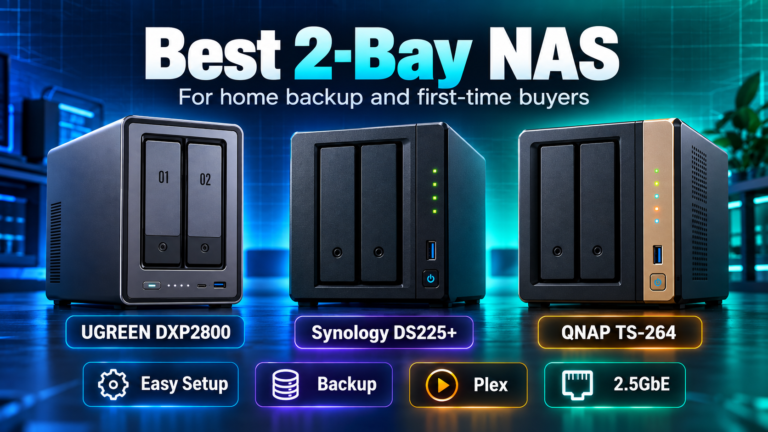
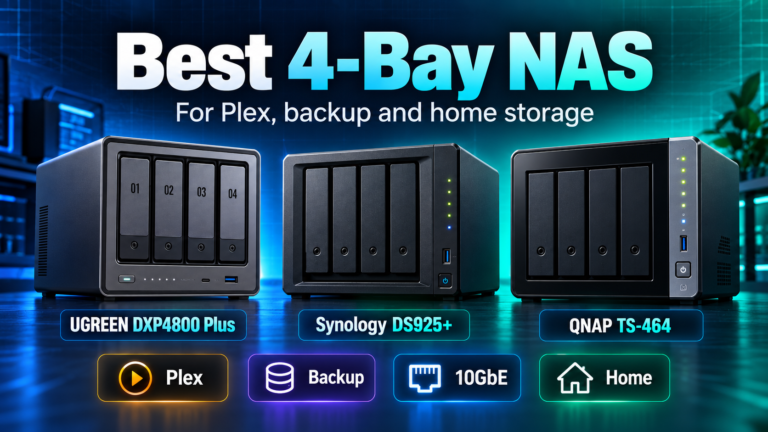
For example, the Synology DS925+, QNAP TS-464 and UGREEN DXP4800 Plus are SATA-bay desktop NAS devices. Before choosing any drive, open the NAS maker’s current drive compatibility tool and search the exact HDD model number. DiskBarn’s hard-drive comparison database is useful for finding candidates, but it is not a substitute for that final vendor check.
CMR versus SMR is a practical RAID decision
Conventional magnetic recording (CMR) is the safer default for most RAID-oriented NAS HDD purchases. Shingled magnetic recording (SMR) can work for certain sequential or archival workloads, but sustained rewrites and rebuilds can behave differently. This is especially relevant when a failed disk must be rebuilt in a parity array while normal file activity continues.
Not every model in a drive family uses identical recording technology. Confirm the exact capacity and model rather than assuming the whole series is CMR or SMR. Read DiskBarn’s CMR vs SMR explanation before paying for an unfamiliar drive that happens to be cheap per terabyte.
NAS-rated versus enterprise drives: which is right?
NAS-oriented HDDs such as Seagate IronWolf and WD Red Plus are marketed for multi-bay, always-on use. Enterprise drives can also be appropriate in a home NAS when interface, compatibility, vibration, power, acoustics and warranty conditions are acceptable. Enterprise hardware is not automatically ‘better’ for a quiet living-room system; some models draw more power or make more noise than the owner expects.
A seller may advertise a recertified enterprise HDD at an attractive price. The low price can be real value, but only after you verify seller identity, drive condition, return policy, remaining warranty and whether the NAS supports the model. Our NAS vs enterprise HDD guide and enterprise drive in a home NAS guide explain the tradeoffs.
Synology drive compatibility changed with DSM 7.3
This is the area where outdated advice can cost buyers money. Synology’s initial 2025 Plus-series drive restrictions were relaxed with DSM 7.3. For applicable DS Plus and desktop FS models, HDDs and 2.5-inch SATA SSDs that are not on the compatibility list may be used for new installations and pool creation, while drives on the incompatibility list remain unsupported. Unlisted M.2 NVMe SSDs have more restrictive rules, including limitations on new pools and caches.
That means neither ‘all third-party drives are banned’ nor ‘any SSD works’ is accurate. Check the official policy for your product series and current DSM release. If you are buying a DS925+ with separate HDDs, make this check before ordering all four drives. Also confirm how the vendor handles support cases involving unverified drives.
Capacity, vibration and warranty still matter
A drive with the correct interface may still exceed a model’s validated capacity, require a firmware update or behave differently under vibration in a multi-drive enclosure. Look at drive thickness and tray support where relevant, rotational-vibration features, temperature, workload rating and expected noise. For a bedroom or office, acoustics can matter as much as sequential throughput.
Do not assume a drive’s family warranty applies to every online listing. Retail, OEM, recertified and used inventory can have different coverage. Confirm the seller and the exact drive serial-number warranty eligibility before relying on a long manufacturer warranty claim.
Should you mix brands or capacities in one NAS?
Mixing drives is sometimes supported, but it complicates capacity planning and troubleshooting. Conventional RAID typically sizes usable capacity around the smallest member in a group, while Synology Hybrid RAID may use different-sized disks more flexibly when supported. That does not mean every mix yields all advertised raw capacity. A sensible first build usually starts with known-compatible drives of the same capacity and similar performance class.
If you already own drives, use the RAID capacity calculator and confirm the specific NAS migration path before moving data. Migration, drive replacement and RAID conversion rules vary by operating system.
A safe purchasing sequence
Choose the NAS first, then the RAID level and usable-capacity target. Search the NAS vendor’s compatibility list using the exact HDD model, not just brand and size. Confirm SATA versus SAS, CMR versus SMR, supported capacity, noise, power and warranty. Only then compare retailers. For a four-bay system, remember that the enclosure and the four disks form one purchase decision.
If you have not chosen the chassis, browse DiskBarn’s NAS database. If you have chosen a drive family but not an exact model, compare DiskBarn HDD models and use the model number for the manufacturer compatibility check.
Bottom line
Many standard SATA HDDs work in desktop NAS systems, but not every HDD is a good NAS purchase. CMR, model-level compatibility, sensible workload design and credible warranty coverage are worth checking before spending money on multiple drives. Buying the right four disks the first time is usually cheaper than discovering a compatibility problem after the NAS is assembled.